Search for all NISAR Data Products
Earthdata Search
Earthdata Search is a web application developed by NASA’S Earth Science Data and Information System (ESDIS) that allows users to search, compare, visualize, and access all of NASA’s Earth Science data.
Earthdata Search organizes data by product type. Each of these data types is called a “collection”. There are more than 10,000 collections available, so you will need to apply filters to return the search results you want.
1. Find NISAR collections
The NISAR mission generates many data product types of varying processing levels, as described in the Data Products Overview. Each one of these product types has its own collection in Earthdata Search. You can search for multiple NISAR collections at once to explore the available data types, or restrict your search to a specific NISAR collection.
Earthdata Search Landing Page
Get started searching for NISAR data quickly by using the search bar on the Earthdata Search landing page. To search for all available NISAR data products, enter NISAR Beta into the search bar.
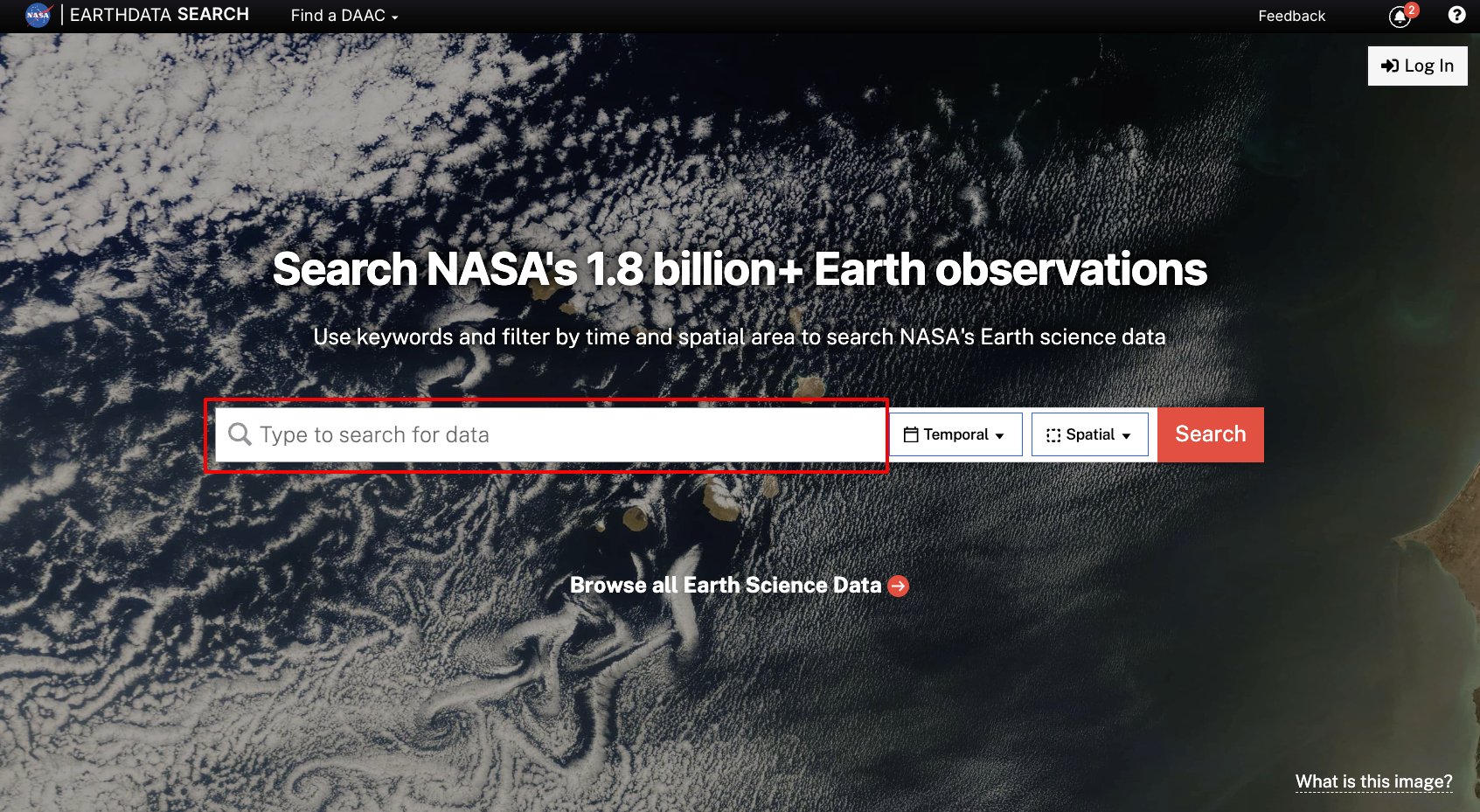
Figure 1:Search using the search bar on the Earthdata Search landing page.
To search for a specific product type, input the corresponding short name from Table 1 into the search bar. For ancillary datasets such as orbit ephemeris files, refer to Table 2 for the short names.
Table 1:NISAR Data Product Short Names
| Product | Short Name |
|---|---|
| SME2 | NISAR_L3_SME2_BETA_V1 |
| GCOV | NISAR_L2_GCOV_BETA_V1 |
| GUNW | NISAR_L2_GUNW_BETA_V1 |
| GOFF | NISAR_L2_GOFF_BETA_V1 |
| GSLC | NISAR_L2_GSLC_BETA_V1 |
| RUNW | NISAR_L1_RUNW_BETA_V1 |
| RIFG | NISAR_L1_RIFG_BETA_V1 |
| ROFF | NISAR_L1_ROFF_BETA_V1 |
| RSLC | NISAR_L1_RSLC_BETA_V1 |
Table 2:NISAR Supporting Data Product Short Names
| Product | Short Name |
|---|---|
| DEM for NISAR | NISAR_DEM |
| Orbit Ephemeris | NISAR_OE |
Filter Panel
If you left the search bar blank when launching your search from the landing page, or want to further refine your search for NISAR collections, you can leverage the panel of filter options on the left side of the Earthdata Search map interface.
Start by typing NISAR into the search bar at the top of the filter panel.
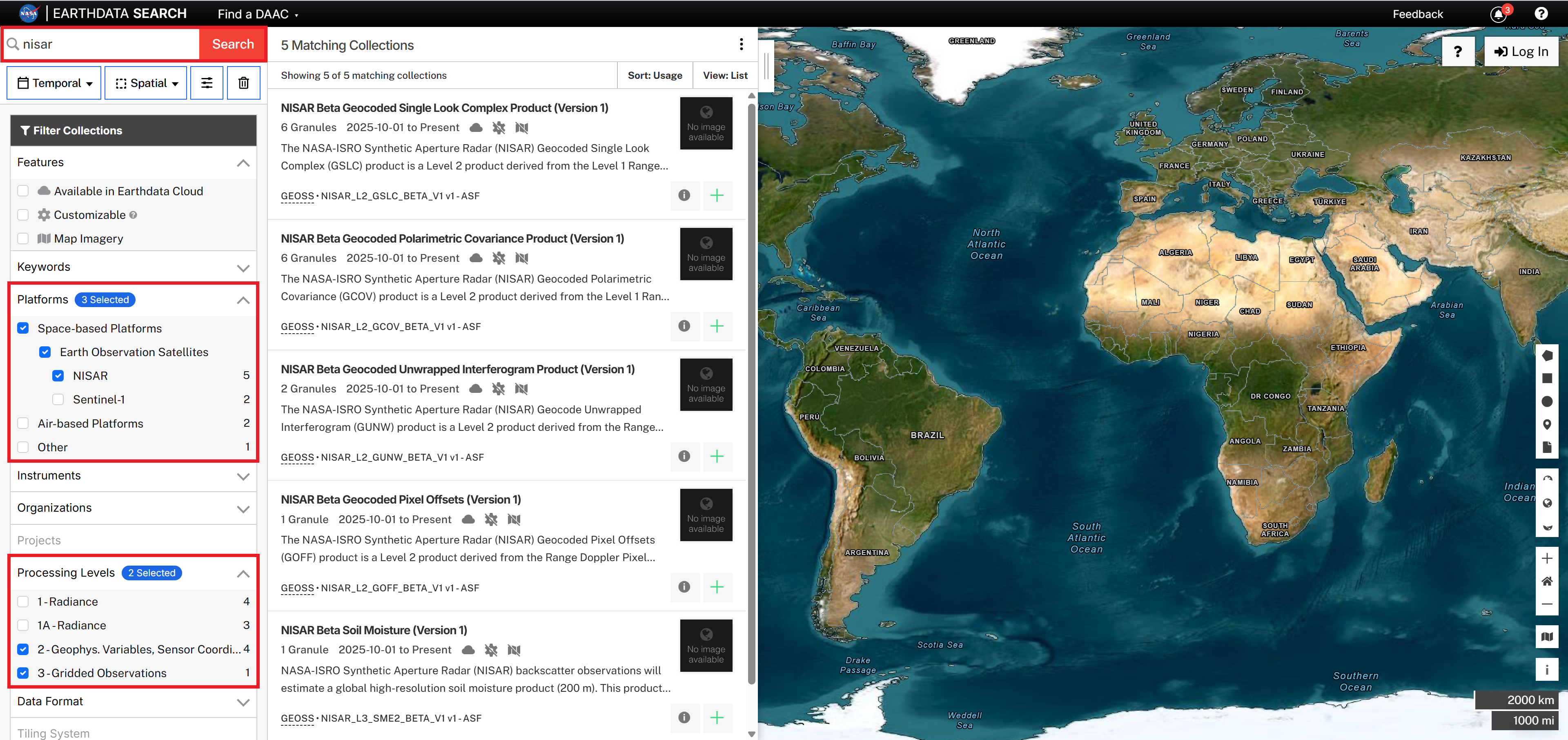
Figure 2:Typing NISAR in the Search Bar and setting the Platforms filter to NISAR and the Processing Level to include levels 2 and 3 will show analysis-ready NISAR data products.
You can also enter more specific keywords into the search bar, but they may not narrow your search completely. For example:
Entering
NISAR GCOVreturns just the NISAR_L2_GCOV_BETA_V1 collection.Entering
NISAR RSLCreturns not only the NISAR_L1_RSLC_BETA_V1 collection, but other NISAR collections that use RSLC products as input during processing.
Beneath the search bar are many filter options organized by category. The categories most useful for refining NISAR search results are Platforms and Processing Levels.
Platforms
In the Platforms section of the filter panel, select Space-based Platforms, then Earth Observation Satellites, then NISAR.
Note the following:
If you have not typed
NISARinto the search bar, NISAR may not be displayed as one of the options in theEarth Observation Satellitescategory. TypeNISARinto the search bar to make sure that it is displayed in the list of Platforms.In preparing for the NISAR mission, there were NISAR-like products generated from data collected by other sensors, including Sentinel-1, ALOS PALSAR, and UAVSAR. These collections may be included in NISAR search results if you do not select only the NISAR sensor from the list of platforms displayed in the panel.
Processing Levels
Use the Processing Levels section to select the desired product level.
Keep in mind that the definitions assigned to the various processing levels are different for SAR data than optical imagery. Refer to Table 3 to compare the product level descriptions listed in the Earthdata Search filter panel to the SAR-specific descriptions.
Table 3:Processing Levels for SAR compared to Earthdata Search level descriptions
Organizations
You can use the Organizations section to select datasets archived by the Alaska Satellite Facility.
Setting the Organization filter to Alaska Satellite Facility is another way to ensure that NISAR is displayed as a platform in the filter panel under Earth Observation Satellites.
2. Find specific products
Individual data products are called “granules” in Earthdata Search. Refine your search to identify granules available in a particular location using a Spatial Filter, or for a specified time range using a Temporal Filter.
Search results are presented by collection. Once you’ve applied your filters, click on the desired collection in the search results (Figure 3a) to view the granules available for that collection.
While you can apply the same search filters to multiple collections, you need to click on each collection in turn to see the available granules. Return to the list of collections using the Search Results link (Figure 3b) to view available granules for a different collection.
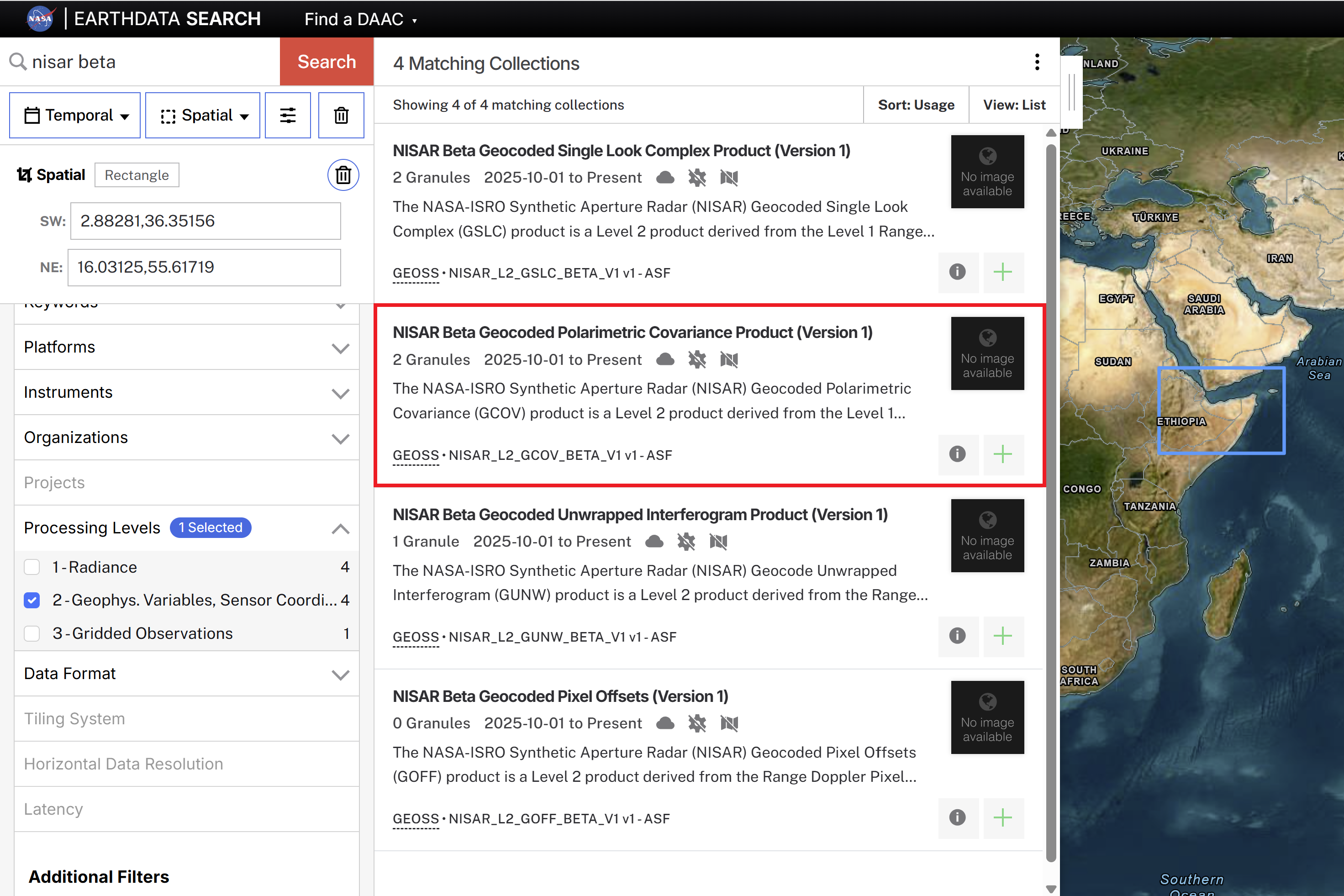
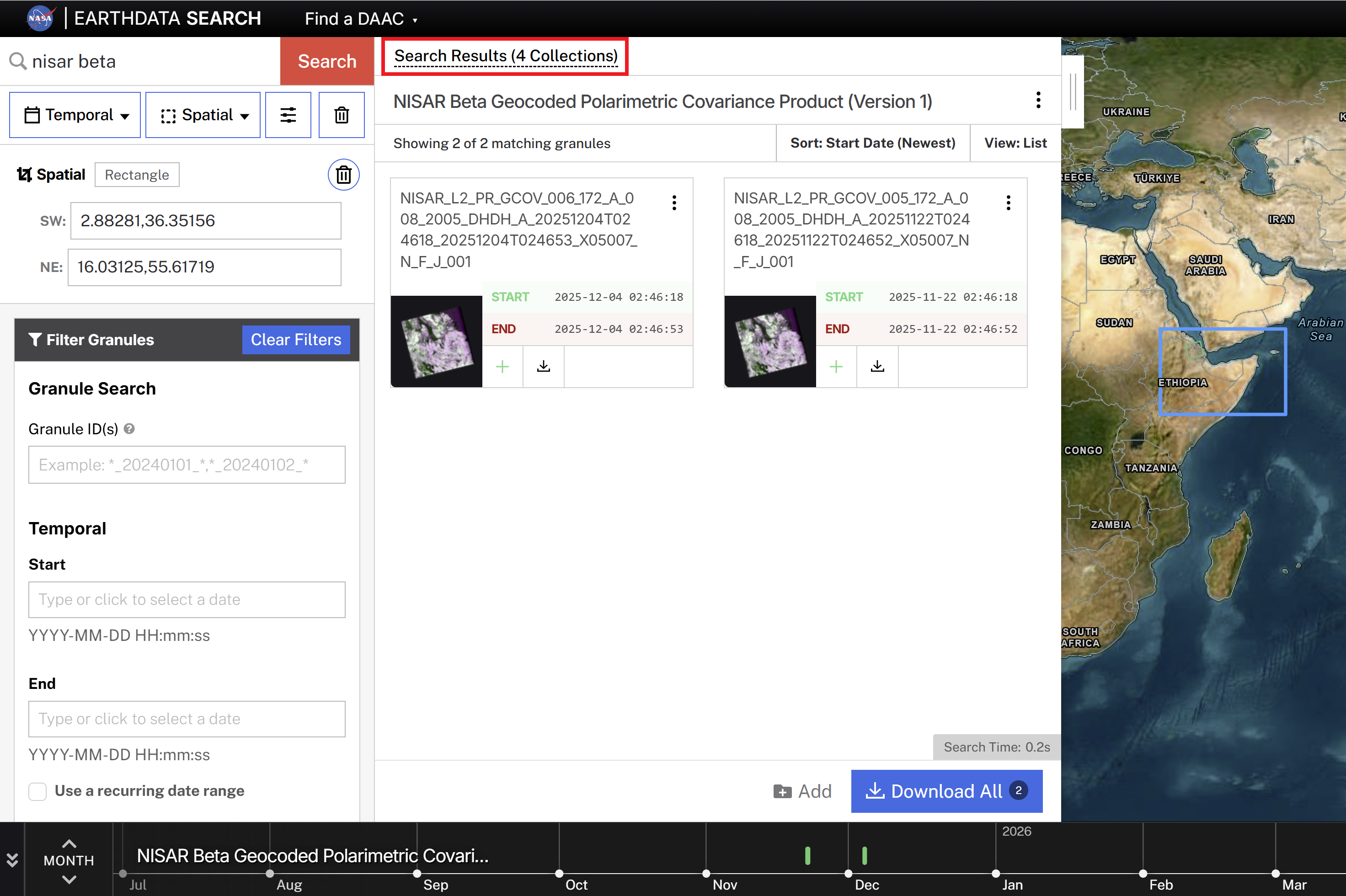
Figure 3:Explore results for multiple collections.
Spatial Filters
To search for a specific geographic region, use the Spatial search menu. You can search with a polygon, rectangle, circle, or point by either by drawing on the map or specifying coordinates. You can also upload a Shapefile, KML, GeoJSON, or GeoRSS file.
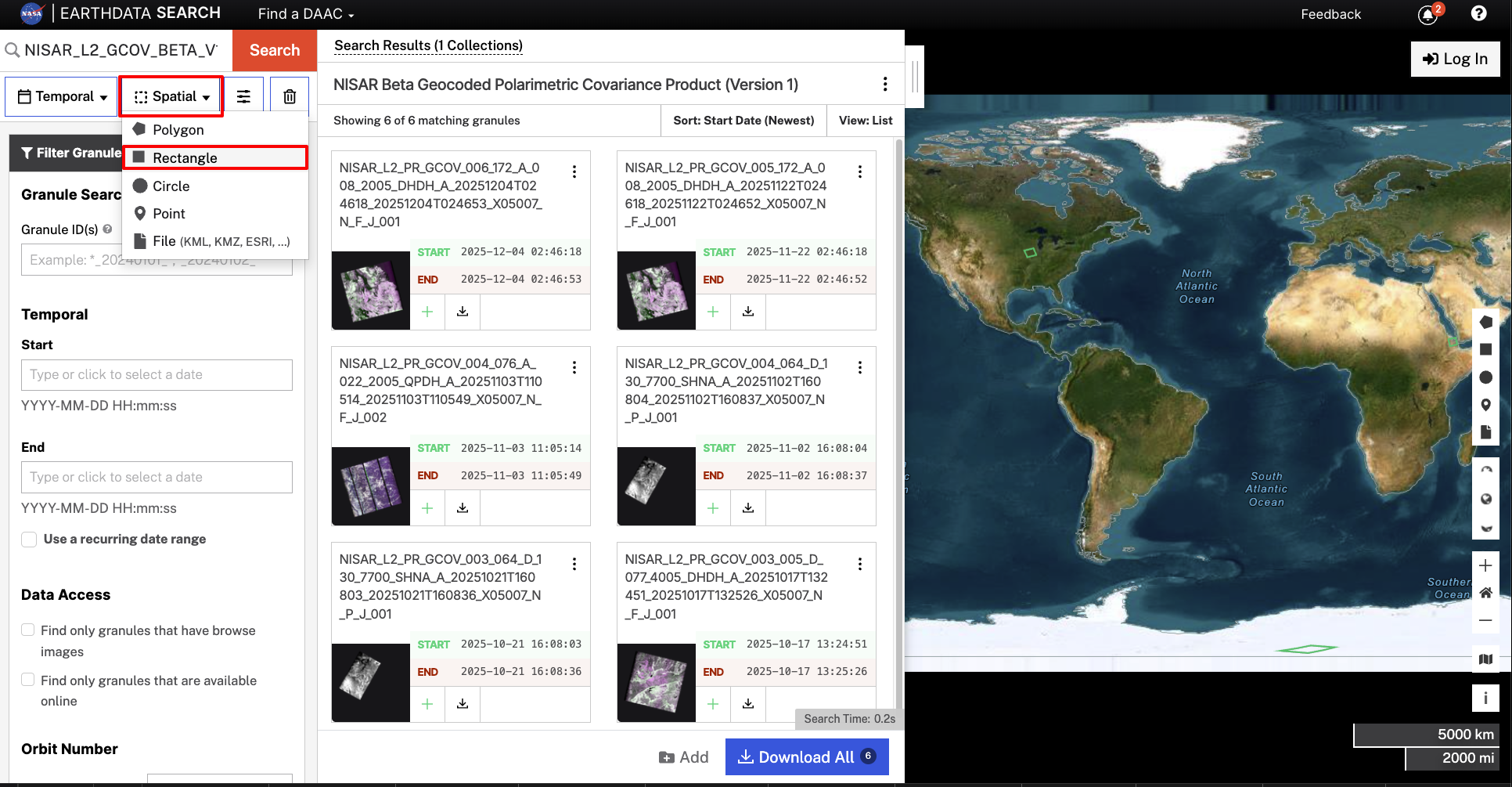
Figure 4:Search by drawing a region of interest or entering coordinates using the Spatial search filter. This example shows a rectangular search, but users can also search using a polygon, circle, point, or geospatial file.
Temporal Filters
To search for products in a specific date range, use the Temporal search menu. This filter searches for products between the specified start and end date/time.
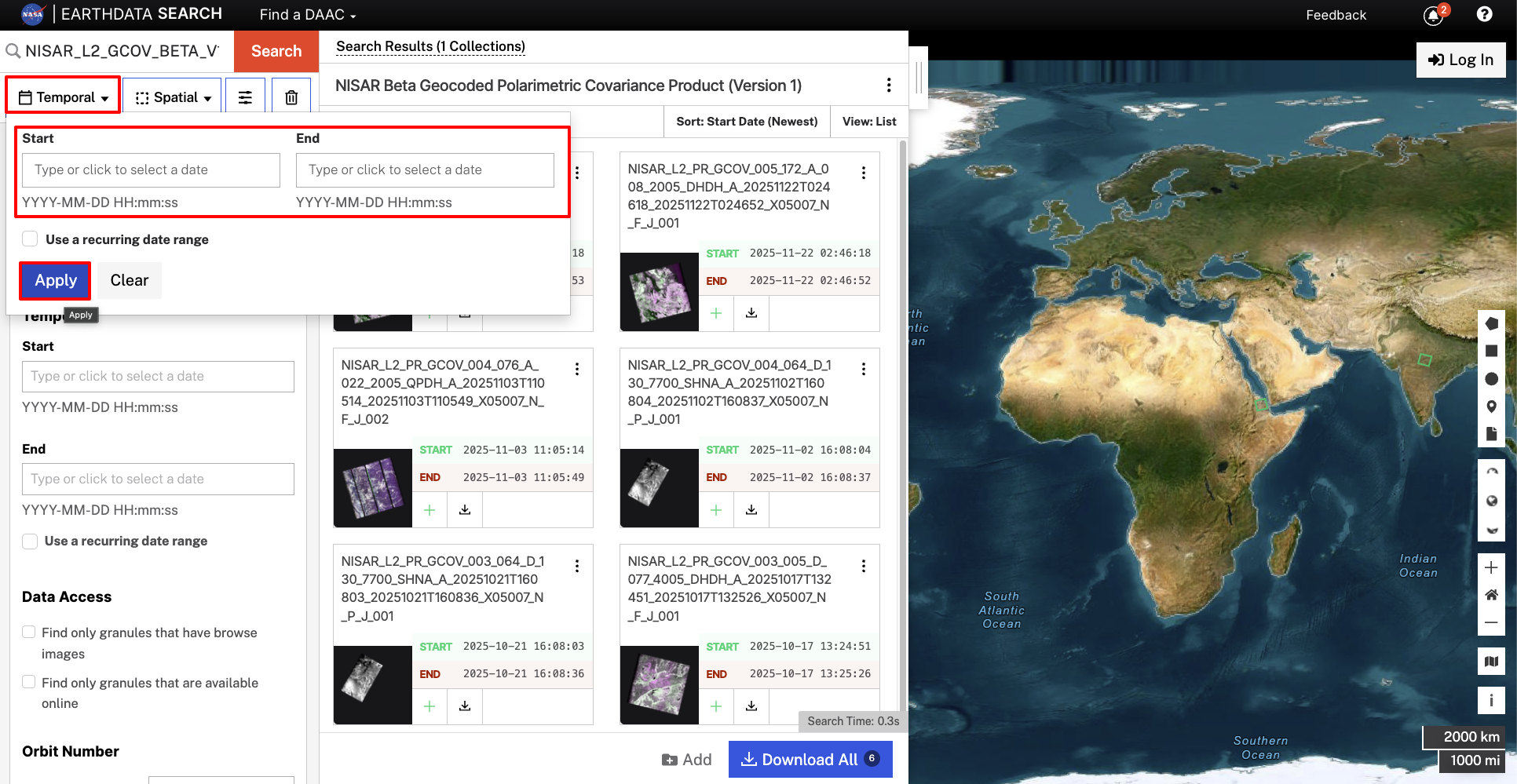
Figure 5:Search using a date range with the Temporal search filter.
To search for products for a specific date range on an annual basis, check the box next to Use a recurring date range. You will be prompted for a month/day (and optionally a time) for the start and stop dates, and can select the range of years to include.
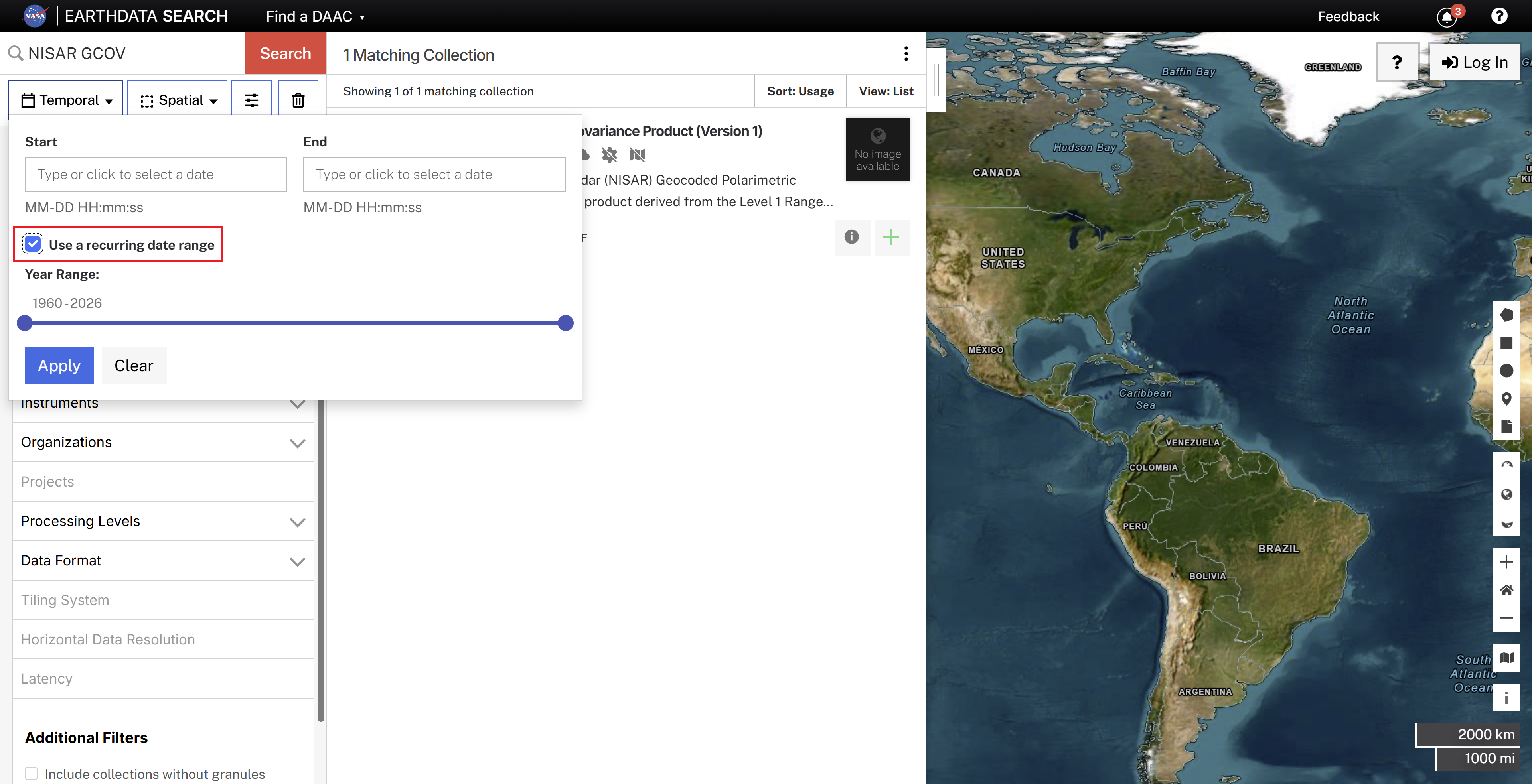
Figure 6:Search for a recurring date range using the Temporal search filter.
Advanced Searches
Once you click on a collection to see the available granules, you can apply an advanced search to refine the list of displayed granules using the Granule Search filter.
To search for a list of specific products, enter granule ID names separated by commas.
This filter also supports wildcard searches, allowing you to search for specific elements found within the product filename. To review NISAR product naming conventions and elements, see Naming Convention Overview.
The question mark (?) wildcard matches a single character at the specified position
The asterisk (*) wildcard matches any number of characters at the specified position
For example, searching for *_QP* in the NISAR_L2_GCOV_BETA_V1 collection will restrict your search results to only quad-pol acquisitions.
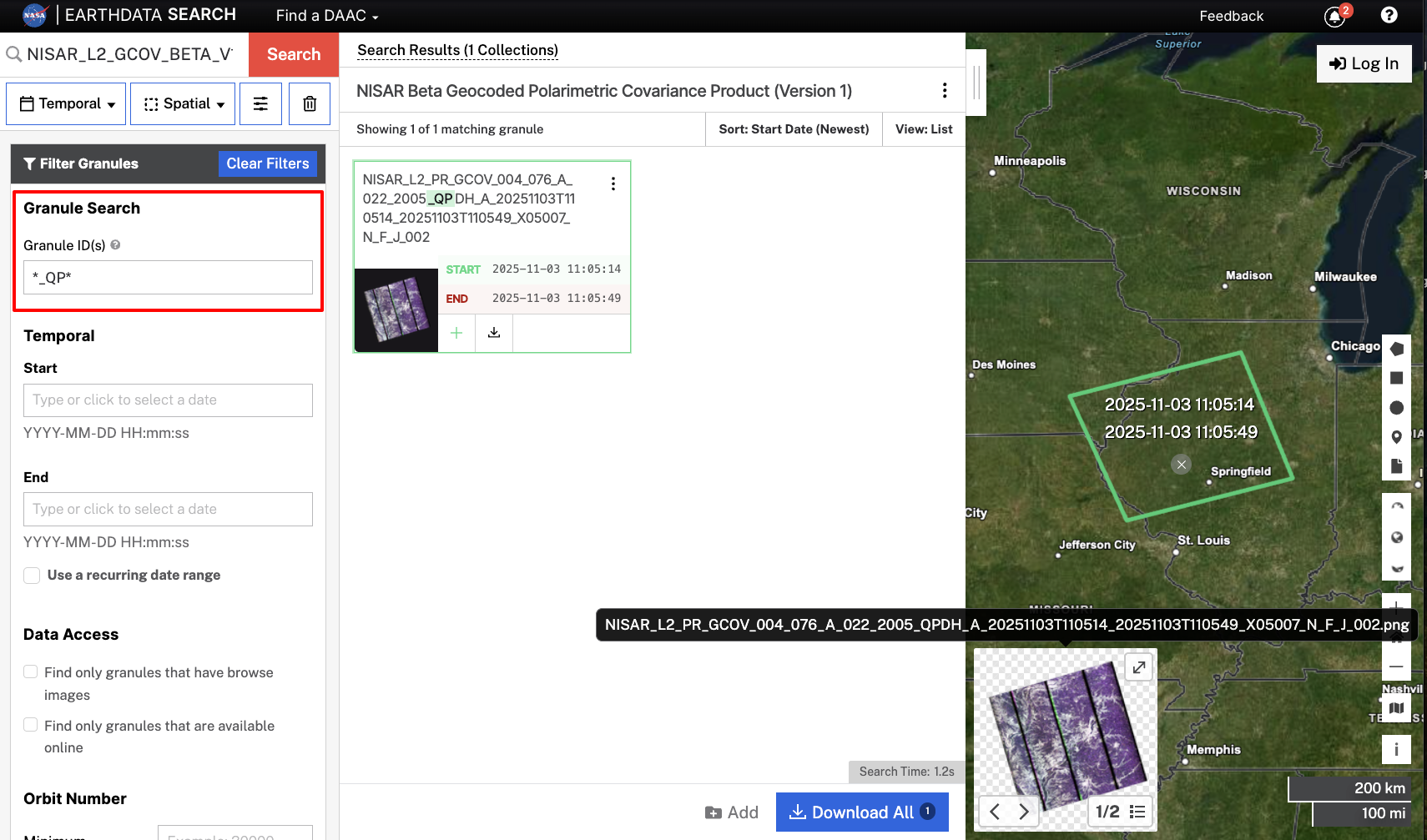
Figure 7:Filter using the Granule ID filter set to *_QP* to find all quad-pol products.
3. Access desired products
There are two options for accessing NISAR data from your search results. You can either download it, or use direct AWS S3 Access paths to work with the data directly in the cloud.
Downloading NISAR Data
Log in to Earthdata Search using your Earthdata Login (EDL) account. To learn more about EDL, see Earthdata Login.
Individual granules can be downloaded directly from the Earthdata Search results. Select the download icon associated with the desired granule to save the file locally.
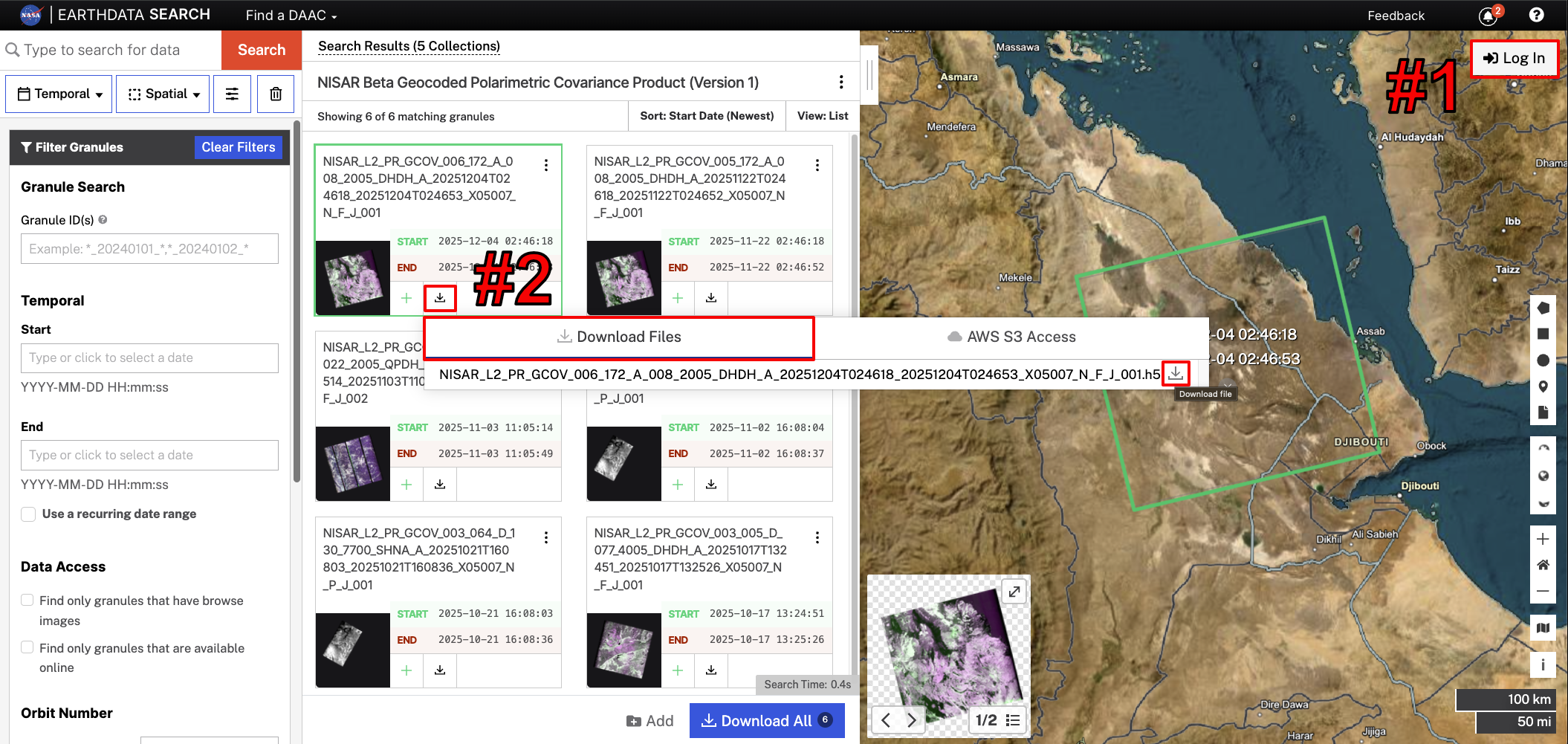
Figure 8:Log in with EDL credentials by clicking the Log In button (#1) on the upper right-hand side of the screen. Once logged in, click the download icon (#2), select the Download Files tab, and click the download icon next to the filename to download your desired granule directly.
For guidance on downloading multiple files in bulk, refer to the NASA Earthdata Cloud Cookbook.
Direct AWS S3 Access
Earthdata Search also provides the S3 paths for NISAR data products, allowing users to leverage tools that interact with the data directly in S3 storage.
Click the Download icon for a product, and select the AWS S3 Access tab. Click the copy icon to copy the S3 path to your clipboard.
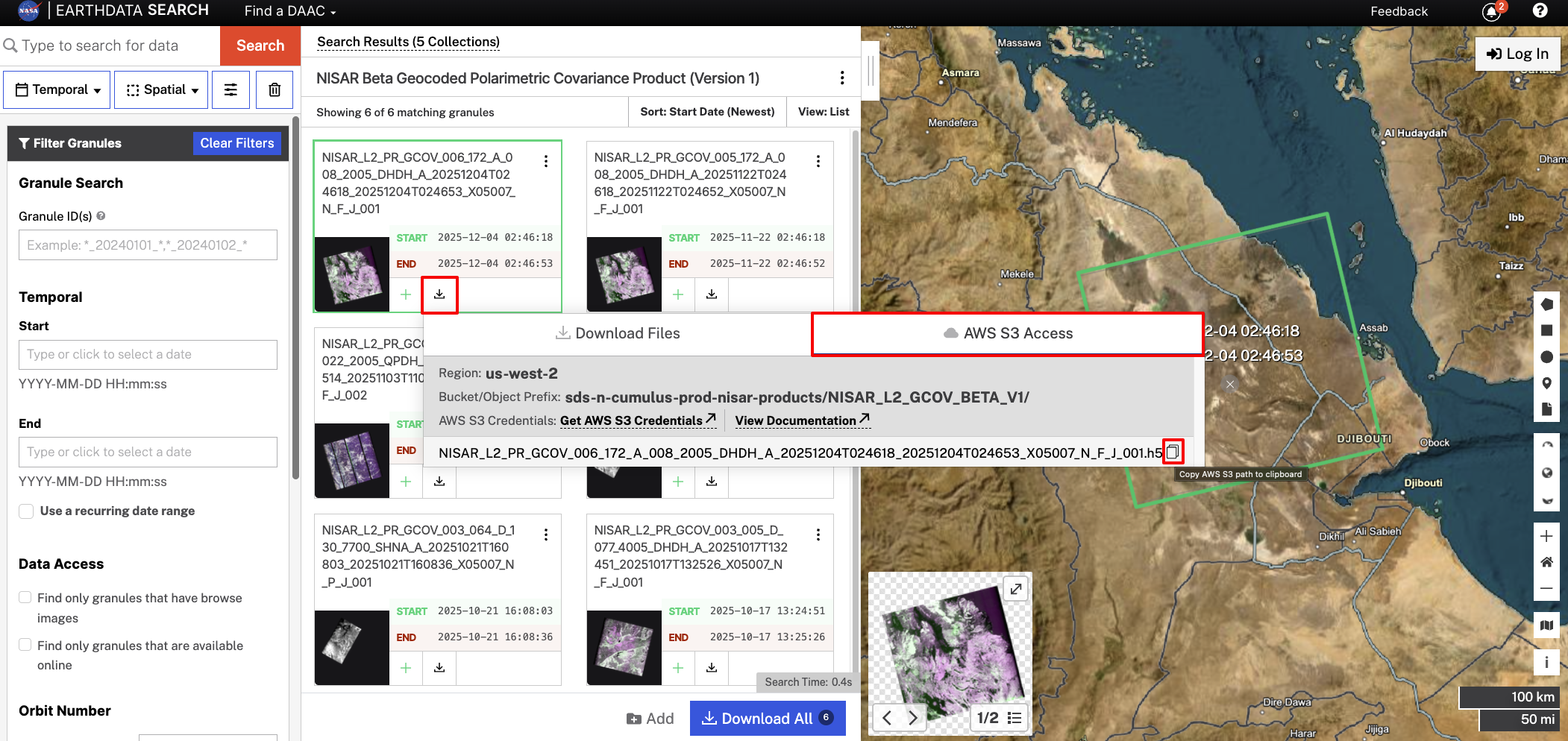
Figure 9:Click the download icon for an item in your search results, select the Download Files tab, and click the copy icon next to the filename to copy the S3 path for that granule.
To learn more about using direct AWS S3 Access, refer to S3 Access Overview.
Urgent Response Products
Urgent Response (UR) products can be found by entering nisar_ur in the Earthdata Search search bar. Refer to Urgent Response: Earthdata Search for more guidance.