Search for all NISAR Data Products
Vertex
Vertex is ASF’s web-based data search interface. It is optimized for searching NASA’s SAR holdings, including NISAR. Because search parameters for SAR differ from other types of Earth observation data, it can be helpful to use a search platform tailored specifically for SAR datasets.
Using Vertex to Access NISAR Data
1. Search for NISAR data
Navigate to Vertex and set the Search Type to Geographic Search and select NISAR from the Dataset menu. Press Search to explore search results.
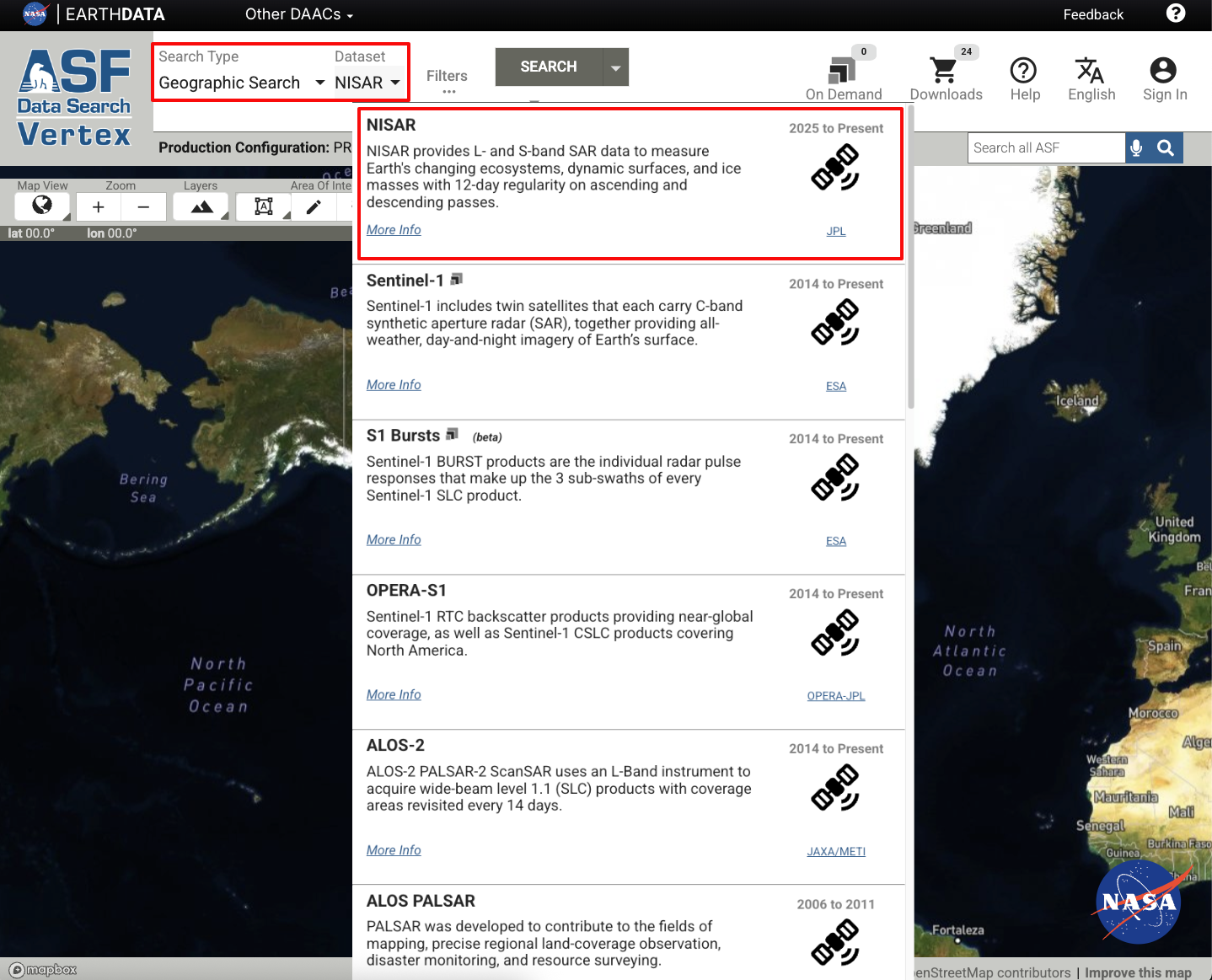
Figure 1:Click on the Dataset field and select NISAR from the drop-down menu to search for NISAR products.
Antarctica
NISAR has great coverage over Antarctica. Users interested in this area may find it helpful to use the Antarctic map projection in Vertex, which renders acquisition footprints at high latitudes much better than the default global view.
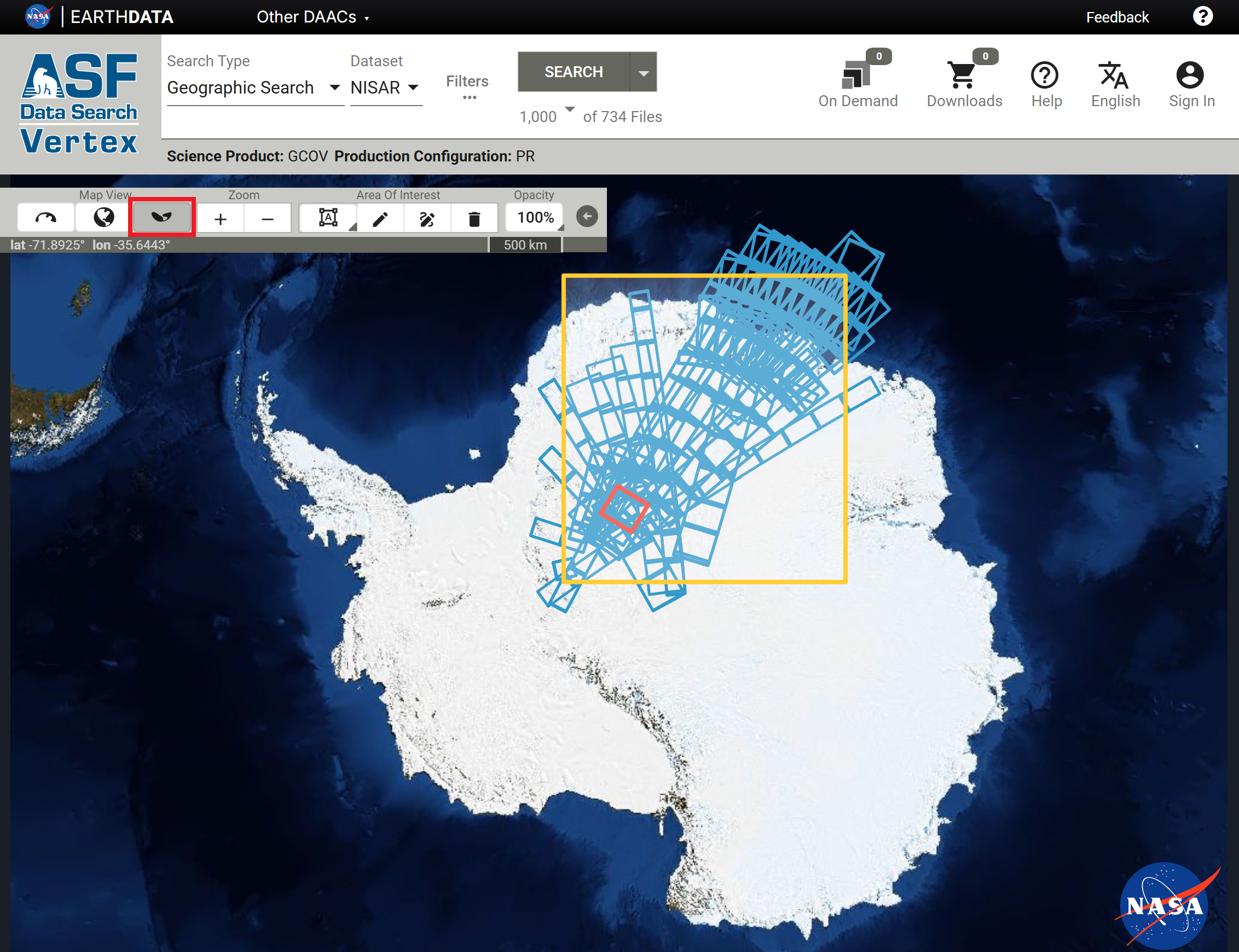
Figure 2:Click the Antarctic map projection button in the Map View section of the Vertex map toolbar to set the map to a south polar stereographic projection.
Note that the Layers button in the toolbar is not available when using a polar map view, as only one basemap layer is available for each polar view.
2. Filter for desired products
Geographic Extent
To search for a specific geographic region, click on the left-most Area of Interest button to choose to draw a point, line, polygon, box, circle, or to upload a geospatial file.
Select a drawing mode to draw a region of interest on the map, then press Search to update the search results for the new region of interest.
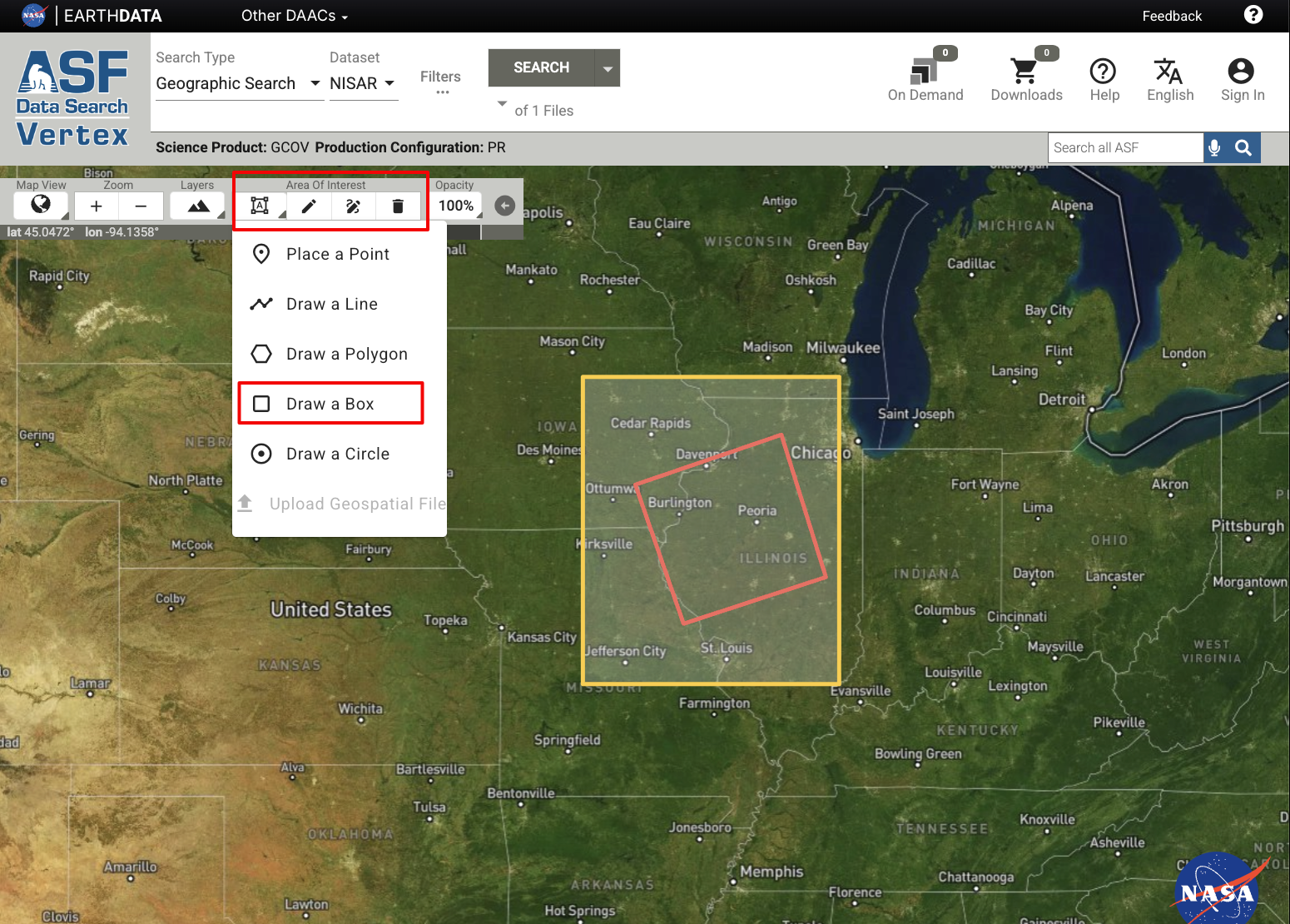
Figure 3:Choose a shape and draw an area of interest for a geographic search.
Take care when drawing an AOI while in the Antarctic Map View. Rectangular AOIs drawn over the South Pole can sometimes be translated into an unexpected polygon, resulting in either no results or many more (orders of magnitude) results than expected. If this occurs, try drawing an AOI to one side or the other of the pole.
Date Range
To search for products in a specific date range, open the Filters panel and specify a start and end date to define the search range.
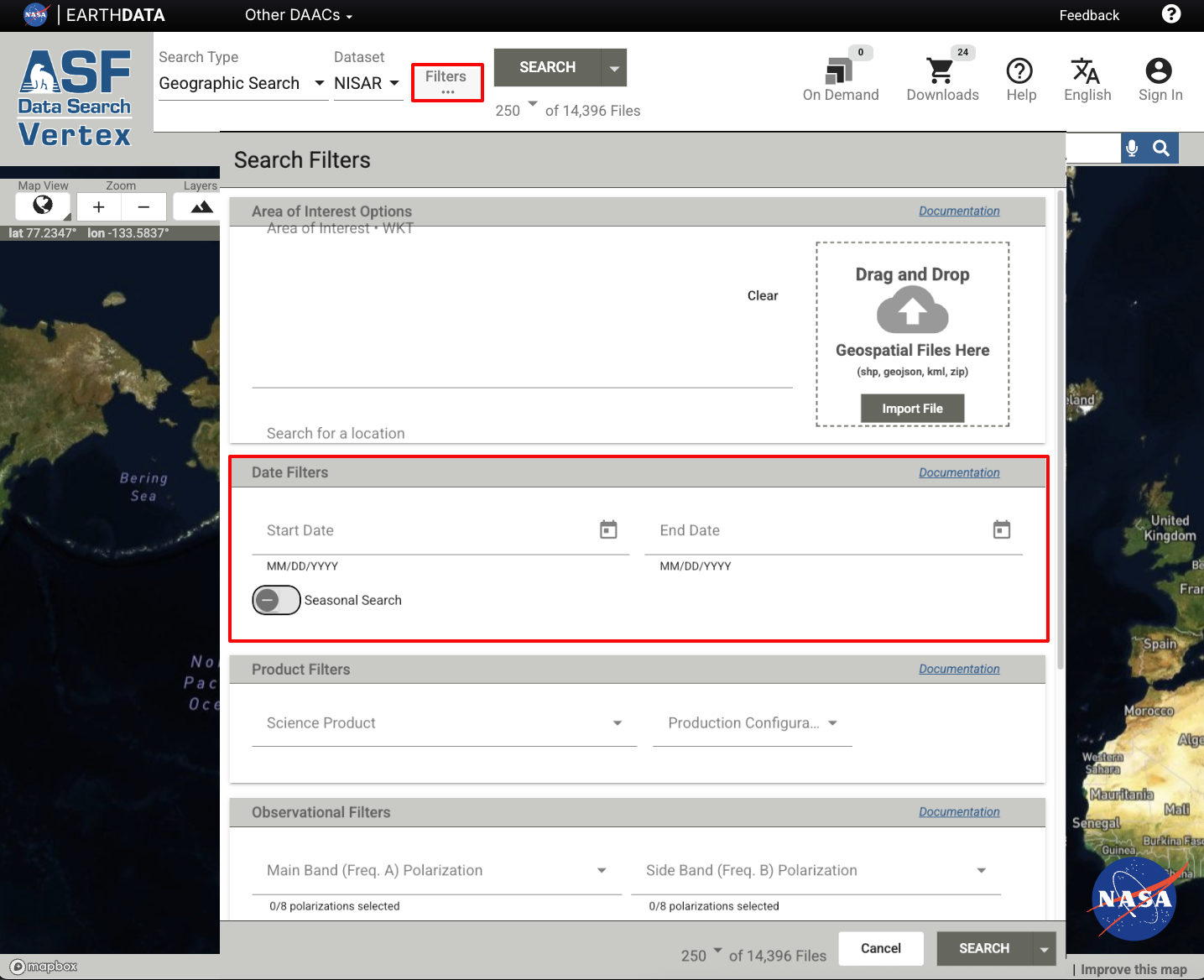
Figure 4:The option to filter by date pops up after clicking on “Filters”
NISAR Filters
NISAR-specific filters are available to more precisely search for NISAR data products. Refer to the Vertex Getting Started User Guide for a comprehensive list of filters and search options.
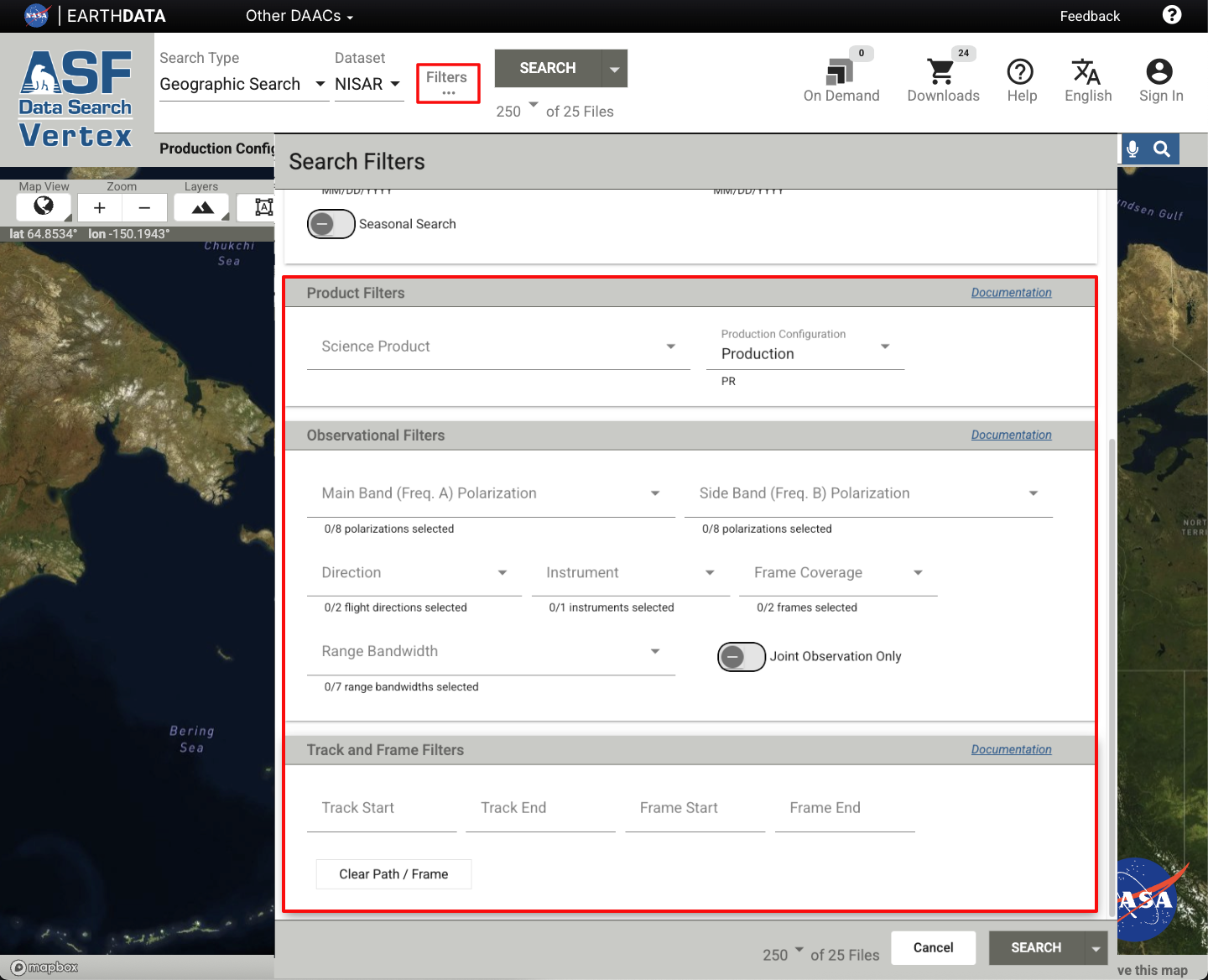
Figure 5:NISAR-specific filters in Vertex.
Product Filters are listed in Table 1. Science Products are organized by product level, and multiple selections are allowed. For a complete list of NISAR products, including detailed descriptions and specifications, refer to Data Products Overview.
Table 1:Product Filters for NISAR Products
| Product Filters | Description |
|---|---|
| Science Product | Specific product type, grouped by product level. Multiple selections allowed. |
| Product Configuration | Specific processing pipelines, including Production and Urgent Response. Multiple selections allowed. |
Observational Filters allow users to refine search results by polarization, direction, instrument, frame coverage, and/or range bandwidth, as described in Table 2. For information about NISAR bands, frequencies, and polarization, see NISAR Instrumentation. Note that only L-band data are available through Vertex. S-band data are provided through ISRO’s Bhoonidhi.
Table 2:Observational Filters for NISAR Products
| Observational Filters | Description |
|---|---|
| Main Band Polarization | Frequency A polarizations. Multiple selections allowed. |
| Side Band Polarization | Frequency B polarizations. Multiple selections allowed. |
| Direction | Orbit direction (ascending, descending). |
| Instrument | Only L-Band SAR is currently available. |
| Frame Coverage | Full or Partial frame coverage. |
| Range Bandwidth | Range bandwidth in MHz. Multiple selections allowed. |
| Joint Observation Only | Toggle on to restrict search to acquisitions with simultaneous L- and S-Band data collection. |
Users can also search by Track and Frame. Note that “Track” is also known as “Path” or “Relative Orbit” for other satellite missions, such as Sentinel-1. Searching for a specific track and frame will return scenes that align consistently over a specific area. The NISAR track-frame map for available NISAR data is available on the NISAR Mission website.
3. Download data
Data are free and available to download through Vertex. Once the desired scene is selected, a list of files will appear on the right-hand side of the screen (or below the scene details on a narrow browser window). The HDF5 file, listed first, contains the science data and imagery. To learn more about HDF5 files, see What is HDF5?.
Click the download icon next to the HDF5 file name to save to your computer. You will be prompted to sign in with your Earthdata Login (EDL) account if you have not already.
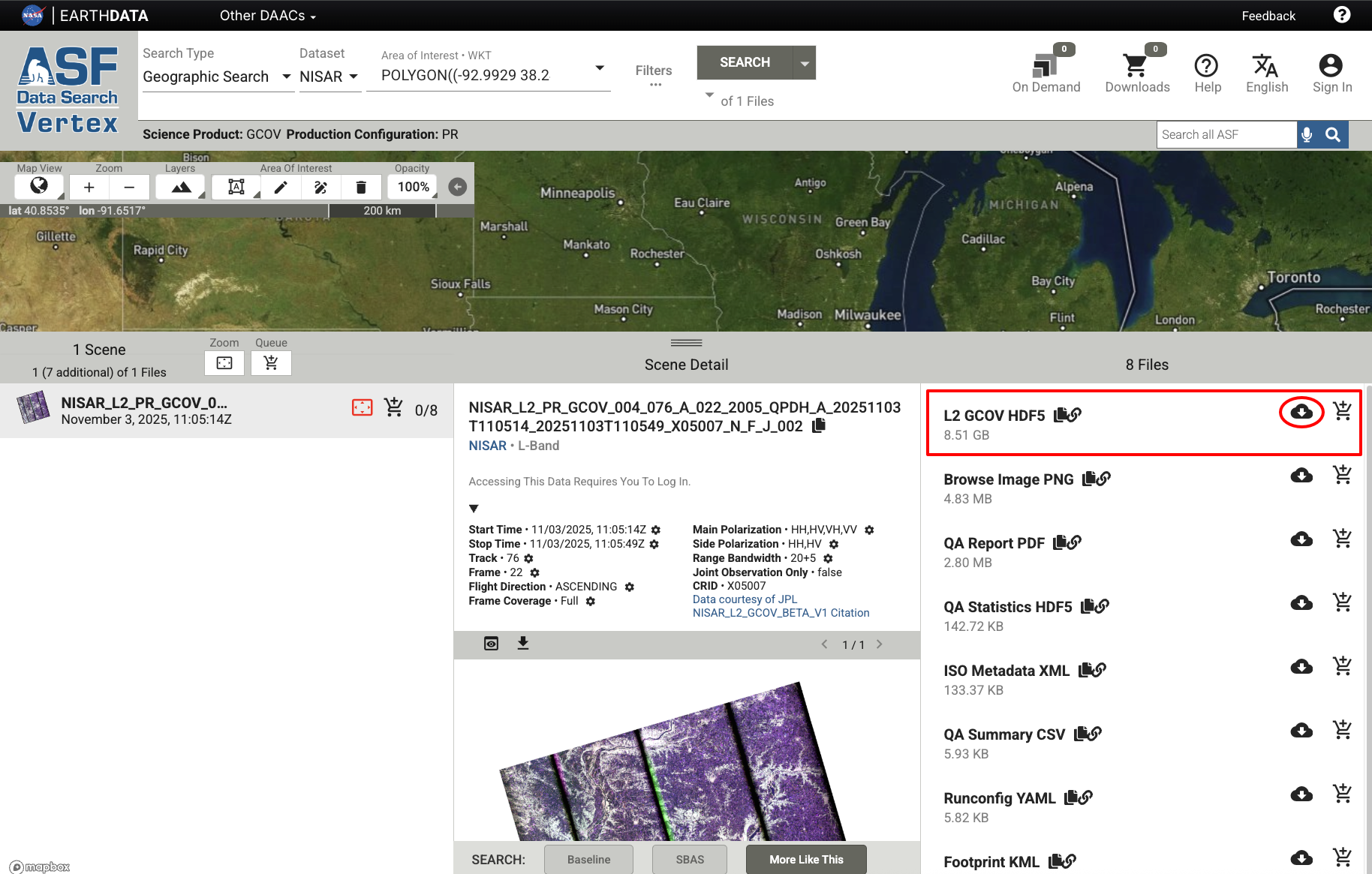
Figure 6:All product files associated with a GCOV product. The HDF5 file, listed first, contains the science data and imagery, and can be downloaded directly by clicking the download icon, circled in red.
Urgent Response Products
Urgent Response (UR) products can be found by setting the Product Configuration filter to Urgent Response. Refer to Urgent Response: Vertex for more guidance.